
Editing Content
There are multiple ways to edit content on your site depending on what type of content it is.
- Basic Page: Most content can be edited right on your basic page.
- People, Events & News: Each specific item needs to be edited from the All Content menu.
- Lists & Teasers:
- The main component (i.e. a list) can be edited from the basic page.
- Since lists & teasers are composed of People, Events or News, each of these will need to be edited from the All Content menu.
Edit Basic Page Edit People, Events & News Edit Lists & Teasers Publish/Unpublish Bulk Editing content
Editing Basic Page
- After you login, go to the page you'd like to edit.
Click the Blue Edit button at the top of the page.

- You will see the list of paragraphs on that page.
As you scroll down the page, hover over the section you want to edit and click on the pencil icon.
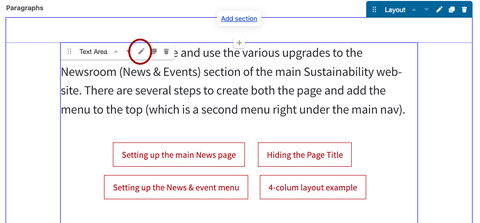
- Edit the fields or images needed.
- Scroll to the bottom and Save.
Editing People, News & Events
Each of these items can be imported or manually entered on your site. Currently each of these are importing from different sources to alleviate extra content editing and to make that process easier.
People
Since most People pages use lists to display them, to edit a person, you need to to this from the All Content menu.
(Note: you can also edit basic pages the same way. You would do a search for the page title instead of a persons name.)
- Get started here to find content.
- You can search for someone's first or last name in the Title field.
- Under the Content type dropdown, choose Person.
- Then click the Filter button.
- In the results list you can scroll to find the person you're looking for & edit it (right side under Operations).
- Or, you can click on the persons name (in the Title column), then edit the page from there (blue edit button top of page).
News
Since most news pages use lists to display them, to edit a news article, you need to to this from the All Content menu.
(Note: you can also edit basic pages the same way. You would do a search for the page title instead of a news title.)
- Get started here finding content.
- You can search for a news article by entering a word or phrase in the Title field.
- Under the Content type dropdown, choose News.
- Then click the Filter button.
- In the results list you can scroll to find the news article you're looking for & edit it (right side under Operations).
- Or, you can click on the News article name (in the Title column), then edit the page from there (blue edit button top of page).
Events & Event Series
Since most Events are imported from Stanford Events you will need to edit events from the Stanford Events site directly.
Learn more about setting up events on Stanford events, event visibility, and cancelling or postponing events.
Lists & Teasers
- To edit a list or teaser, find the page with the list or teaser and edit the page.
- Scroll down to the List section and click the pencil icon to edit criteria inside the List.
Lists
Read more about different Lists & their options
Read more about Shared Tags Lists
Teasers
Publish or unpublish pages & sections
Pages default to public when they're first created. You have the option to unpublish a page if you don't want it visible to the public (sometimes used for content review). You can also unpublish paragraphs on a page, leaving the page published (sometimes used to see layout or for content review). Sections (i.e. rows) cannot be unpublished as a whole row. You have to unpublish each paragraph in that row.
Publish/Unpublish pages
- To unpublish a page, scroll to the very bottom by the Save button.
- Right above the Save button is the publish checkbox. Uncheck that box and Save.
Unpublish sections
- To unpublish a paragraph, edit the paragraph.
- Scroll to the bottom of the paragraph.
- Right above the Save button is the publish checkbox. Uncheck that box and Save.
Bulk Editing Content
Bulk editing allows you to modify multiple pages at once. The modifications will be the same for all the content you select to bulk edit.
The most common use of this feature is adding taxonomy terms to pages (for example, tagging a group of people as "Faculty") or unpublishing many items at once.
Learn more about Bulk Editing content