
Jump links
Main content start
Jump links (AKA anchor links) offer a way to navigate to a particular section of a webpage. For example, "back to top" links or links to a particular question in a frequently asked questions page.
Creating jump links is a two-step process:
Create an anchor
The Anchor is like a bookmark on your page where you want the link to jump to.
There are two ways to create an Anchor:
Tips
- Use the Flag icon to create an Anchor in body text.
- You can use the Flag icon to create an anchor in a Heading, but it will also put a > in your Heading where the anchor resides.
- If you don't want to see the > in your Heading, you need to use the Source method.
- Use the Source method to create an Anchor for Headings (Heading 2, Heading 3, etc.).
Creating an Anchor with the Flag icon
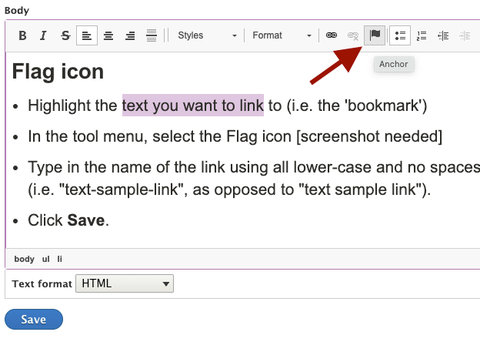
- Highlight the text you want to link to (i.e. the 'bookmark').
- In the tool menu, select the Flag icon.
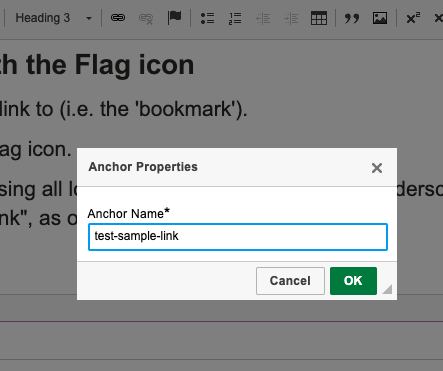
- Type in the name of the link using all lower-case and no spaces. Use Underscores "_" or dashes "-" instead of spaces. (i.e. "text-sample-link", as opposed to "text sample link").
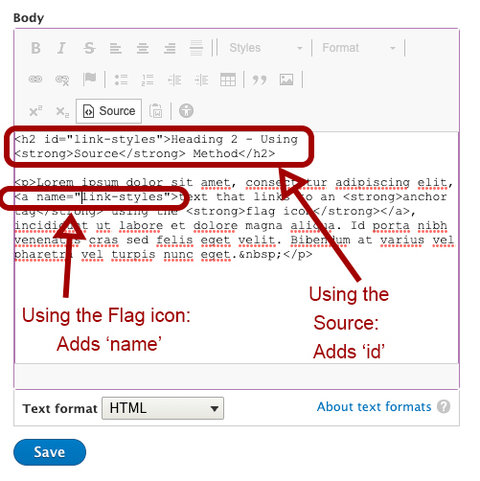
- This will add the Anchor in the source by the text you highlighted (i.e. <a name="anchor-link"></a>), but you don't have to go into the Source to change anything.
- Click Save.
Creating an Anchor in the Source
In a Text Area paragraph:
- Check to see that the Text format in the editor is set to HTML. If it’s set to Minimal HTML or Plan text, change it to HTML.
- In the body field, type in the text that you'd like to display.
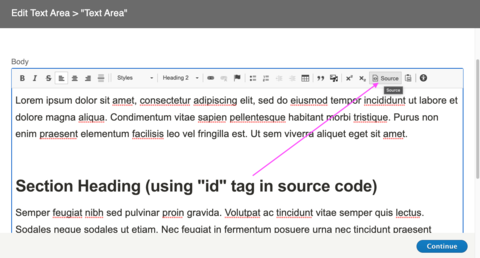
- In the editor, select Source.
- Navigate to where you want to insert an anchor.
- In the HTML code, inside the tag (i.e. the Heading 2 tag looks like this: <h2 id="anchor-name">), insert the anchor using the format id=“anchor_name”.
- This inserts an ID in the tag itself.
- Tip: IDs on a page must be unique, and can't be reused for other anchors.
- In the text editor, click Source again, to see the front end of the text. Your code should not be visible on the front end.
- Click Continue and then Save to save.
Tips
- It’s recommended to use a word or phrase that describes the link's destination.
- If you use a phrase, use underscores or dashes instead of spaces in your anchor link text. Spaces don't work.
- Using the Flag icon sometimes adds an unexpected character ">". To avoid this, use the Source editor when creating an anchor. If you try to add code to the normal text editor, your code will not save as expected.
- Remember that ID values must be unique, and can't be re-used as anchors for other elements.
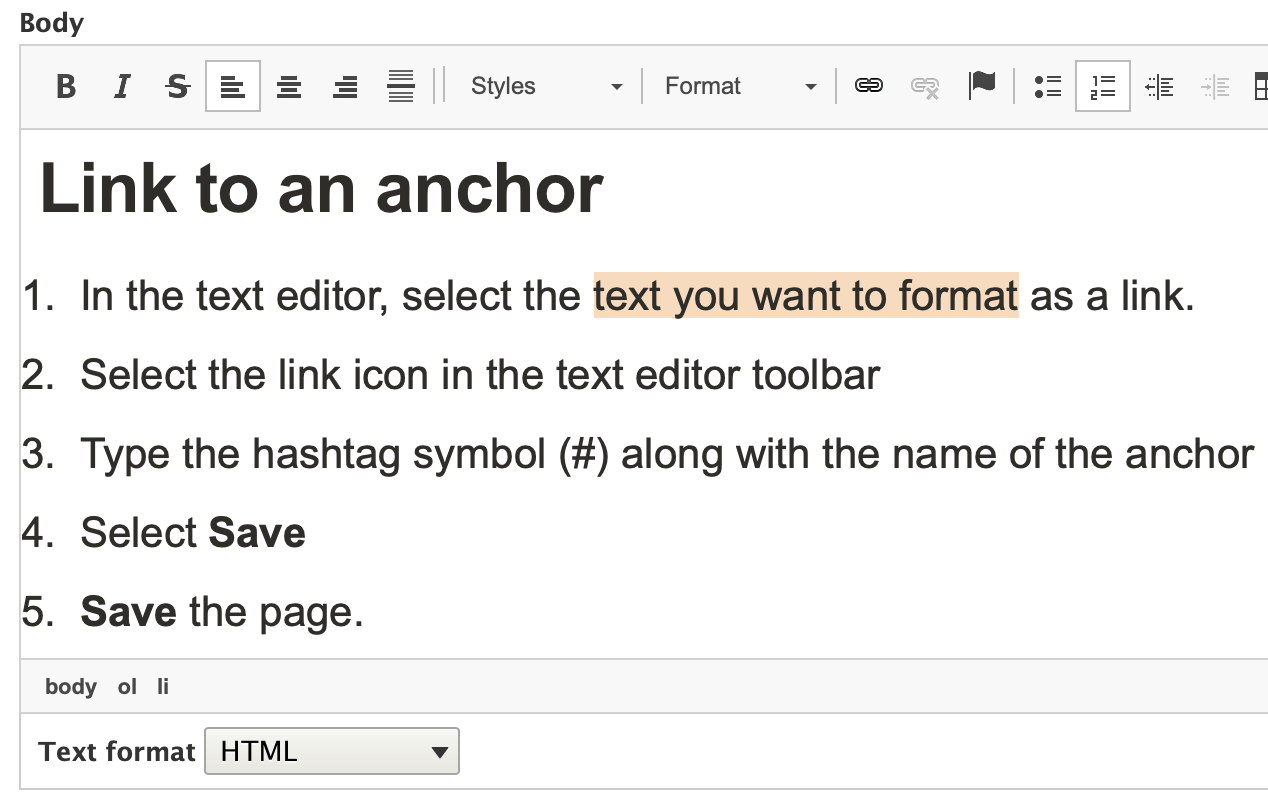
Link to an anchor
- In the text editor, select the text you want to format as a link.
- Select the link icon in the text editor toolbar
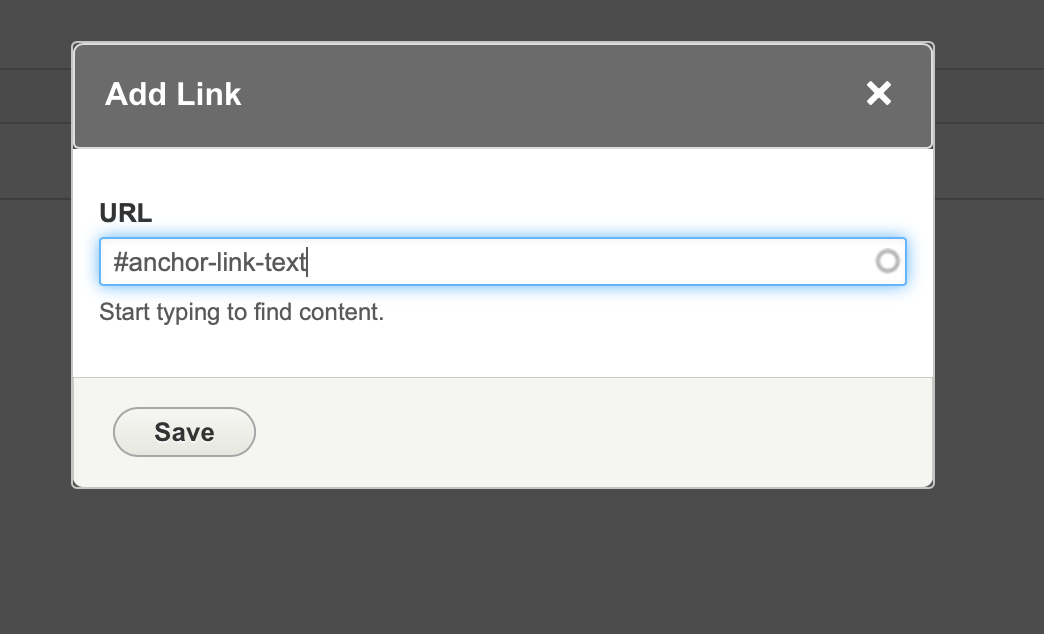
- Type the hashtag symbol (#) along with the name of the anchor ID you want to link to.
- Select Save
- Save the page.
Note
- While anchor links normally point to somewhere on the same page, they can also link to an anchor on another page. Just be sure to include the other page's full URL followed by a hashtag and anchor link.
-
IE, <a href="https://someotherpage.stanford.edu/about#anchor-link">.